Navigating the Open Learning Course Resources Page
Access teacher resources available on my.mheducation.com.


Access the Resources Page
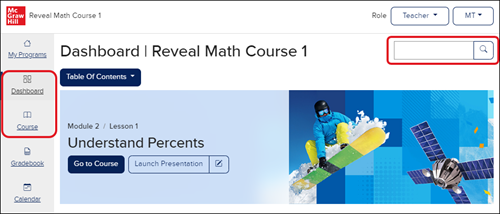
From the Dashboard or Course page, enter a keyword or click on the magnifying glass icon on the Resource search bar.
Course Resource Page Navigation
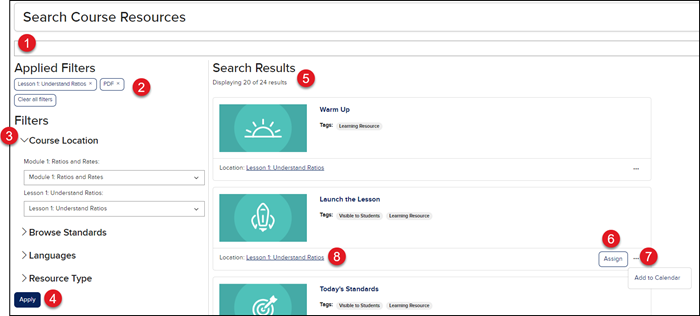
1. Resource Search Bar - Enter a keyword in the Search field at the top of the page to bring up search results that include the keyword(s) entered.
2. Applied Filters - Lists the keyword(s) entered in the Search field and any Filters selected.
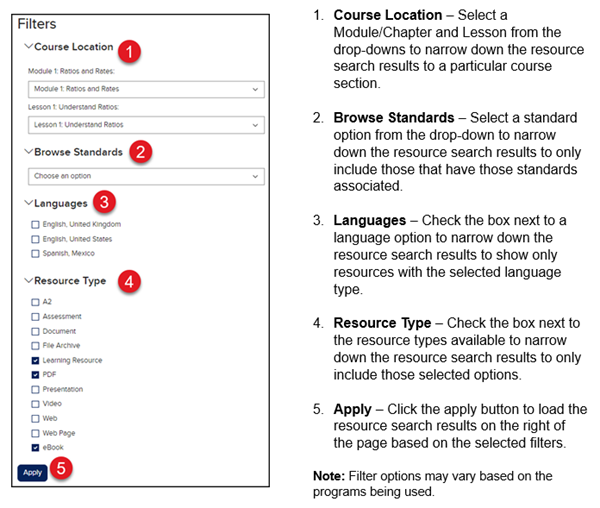
3. Filters - Use the Filters available to narrow down the resource results on the right of the page.
4. Apply - Click the Apply button after selecting the desired Filter options.
5. Search Results - Lists all the resources that correspond with any keywords and/or Filters selected.
6. Assign - Click the Assign button on select resources to assign to students to complete. For more information on assigning resources, read Open Learning Platform - Assignment Management.
7. Action Menu - Click the Action Menu icon to add the resource to the Calendar.
8. Location Link - Click the Location link to navigate to the resource on the Course page.
Filters